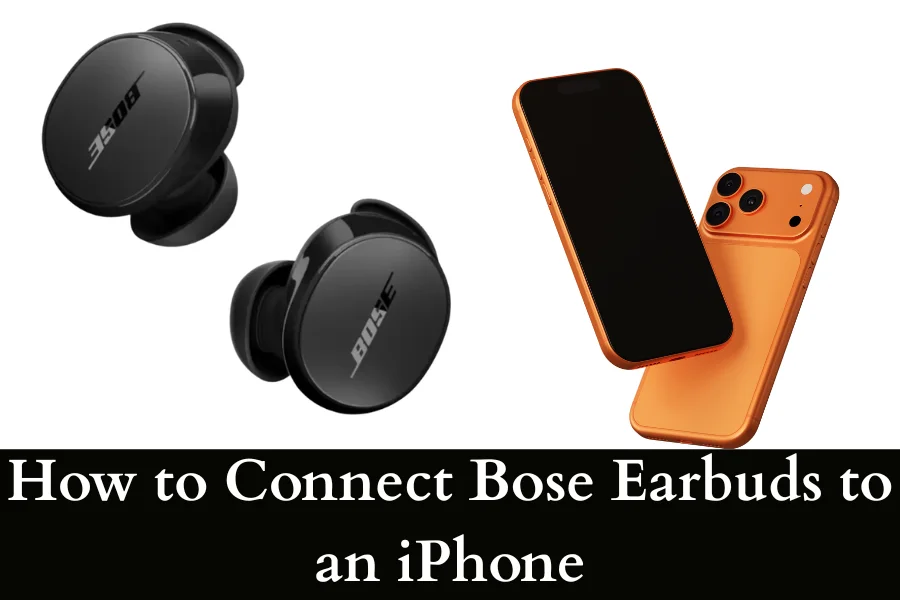
How to Connect Bose Earbuds to an iPhone: 3 Simple Steps
Bose earbuds let people enjoy whatever they are listening to without disturbing anyone around them and maintaining their own privacy. It might be difficult for some people to use the Bose earbuds if they have never dealt with earbuds before.
In this guide, we will show you how to connect Bose earbuds to an iPhone.
How to Connect Bose Earbuds to an iPhone: 3 Simple Steps
To connect Bose earbuds to an iPhone, follow this:
- Put your Bose earbuds in the charging case, open the case lid, and press and hold the Bluetooth/pairing button on the case until the light blinks blue. (Some models enter pairing mode automatically when opened.)
- Open Settings on your iPhone, tap Bluetooth, and turn Bluetooth On.
- Wait for your Bose earbuds name to appear under Other Devices. Tap your Bose earbuds name (for example, “Bose QuietComfort Earbuds”) and wait a few seconds until it says Connected.
Step 1 – Check the Battery and Turn on the Pairing Mode
The first thing u need to do is check if the earbuds are charged. This is due to the fact that if the battery is low, you will not be able to connect them as they will turn off or they won’t appear in the Bluetooth list.
Take the earbuds out of their charging case. Pairing mode is already activated in the earbuds when the earbuds are taken out of the charging case.
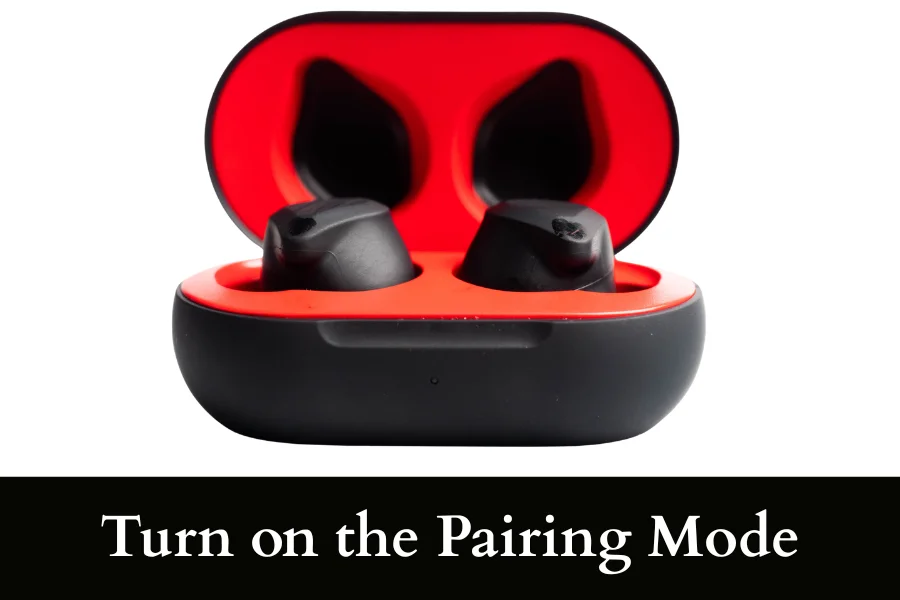
Something you also need to know is that the Bose models make a sound or blink a light to show that pairing mode is on, so you can easily tell.
Step 2 – Go to Settings
The 2nd step is to unlock your iPhone and go to the Settings app from the home screen. You will see a Bluetooth option in the app; you have to select that and turn the toggle on.
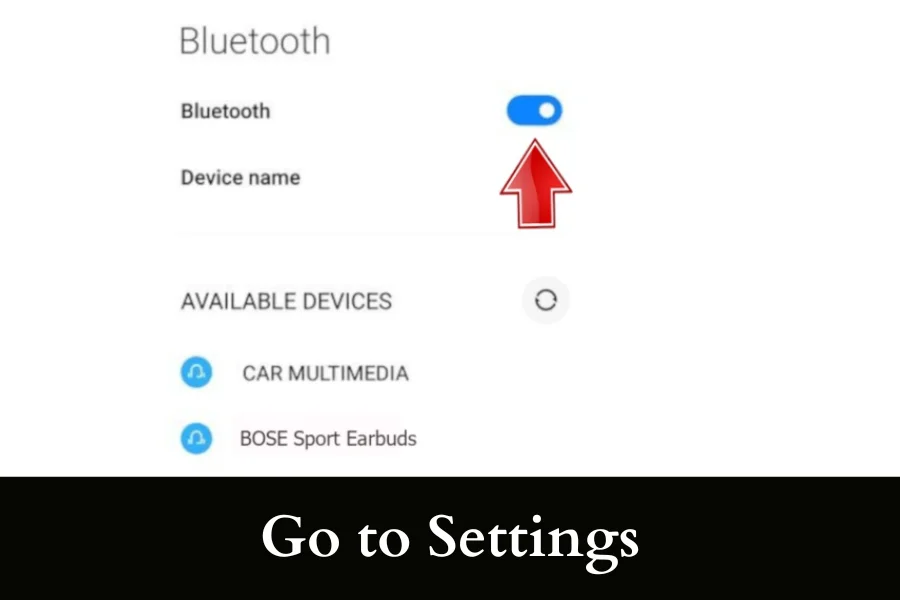
Your iPhone will start its search for any Bluetooth devices nearby. Keep your earbuds close to the iPhone as it helps them connect. If your earbuds are not in the range of the iPhone, the earbuds won’t be connected.
Step 3 – Connect the Bose Earbuds
Now you need to scroll to the bottom of the Bluetooth section. Once you see an option called “Other devices,” you need to click it. You have to wait for your Bose Earbuds to appear in the list and tap the name of your Bose earplugs when it appears.
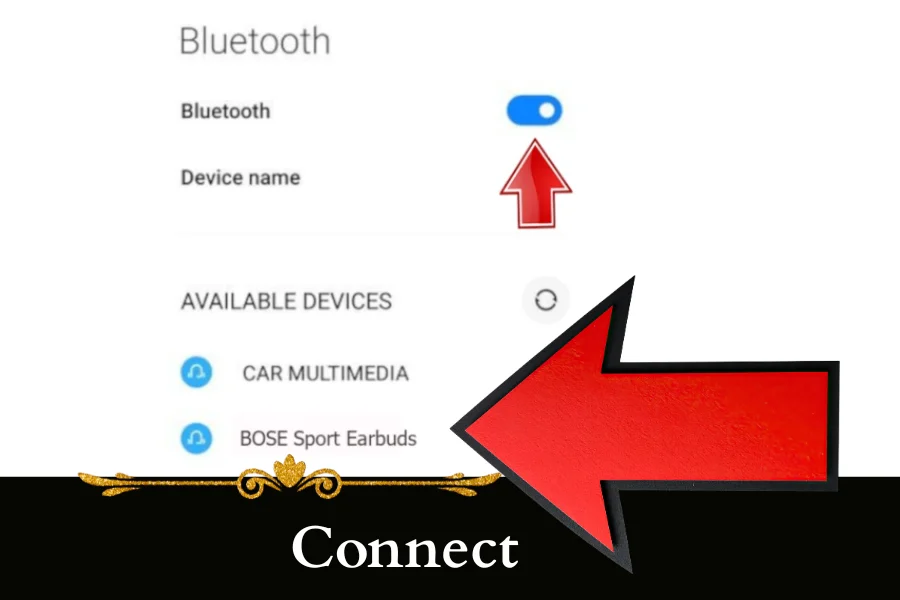
When the earbuds get connected, the status will show as “connected”. You can use the earbuds after that.
An important tip is that you can manage the earbuds using the Bose app.
Can I Use Bose Earbuds With an iPhone?
Yes, Bose earbuds work very well with iPhones. Most modern Bose models support Bluetooth, which means you can connect them to your iPhone wirelessly in just a few steps.
Once connected, you can:
- Listen to music
- Answer calls
- Use Siri
- Watch videos
- Enjoy noise cancellation features without any issue. And if you are looking for some new ANC earbuds, then do check out this guide – Best Noise-Canceling Earbuds in a 100 dollars range.
Many users also install the Bose app to customise controls, update firmware, and adjust audio settings. In my experience, I have found that the battery status and device management become easier through the app as well.
Why isn’t Your iPhone Connecting to the Bose Earbuds?
Is your iPhone not connecting to your Bose Earbuds? Here are a few reasons why that can be happening:
- Your earbuds were already connected to some other devices present. You need to check your other devices, such as your laptop or any other phones.
- Your earbuds might not be in pairing mode. You need to check and make sure that they are on.
- The third case is a software glitch. To fix this, you have to reset the earbuds and reconnect.
Can You Connect Bose Earbuds Without the Bose App?
The app does not have any kind of effect on the whole pairing thing, so yes, you can connect the Bose earbuds without downloading their app
The Bose app is not used for connecting your earbuds, but instead provides extra features related to them. You can only take advantage of those tools if you have the Bose app.
These features contain audio EQ and noise cancellation control, etc. Thus, you can choose if you want to download the app or not.
How to Put Bose Earbuds Into Pair Mode
Connecting Bose earbuds becomes simple once pairing mode is activated. Pair mode allows your iPhone, iPad, or other Bluetooth device to detect the earbuds for the first time.
Follow These Steps:
- Place both earbuds inside the charging case and open the lid of the charging case.
- Press and hold the Bluetooth or pairing button on the case. Keep holding until the LED light starts blinking blue.
- The blinking blue light means the earbuds are now discoverable, and you can connect them.
- Open Settings > Bluetooth on your iPhone, and select your Bose earbuds name from the device list.
- Wait until you see the status change to “Connected.”
Helpful Tips
- Make sure the earbuds have enough battery charge so that you don’t face any problems.
- Keep the earbuds close to the iPhone during pairing (preferably within 3 feet).
- Disconnect them from old devices if pairing fails because the older device sometimes doesn’t allow the buds to connect to the new one.
- Some newer Bose earbuds enter pairing mode automatically when the case opens, so keep this in mind as well.
Conclusion
Bose earbuds are popular earbuds that are known for their audio performance. This makes them a good choice for listening to music, making calls, and just using media overall.
To connect the earbuds, you need to start by activating the pairing mode, switching on Bluetooth on the iPhone, and choosing the earbuds from the list of available devices.
If you want, you can download the Bose app to access additional features; otherwise, you can connect them to your iPhone, and simply connect the earbuds and use them as they are.