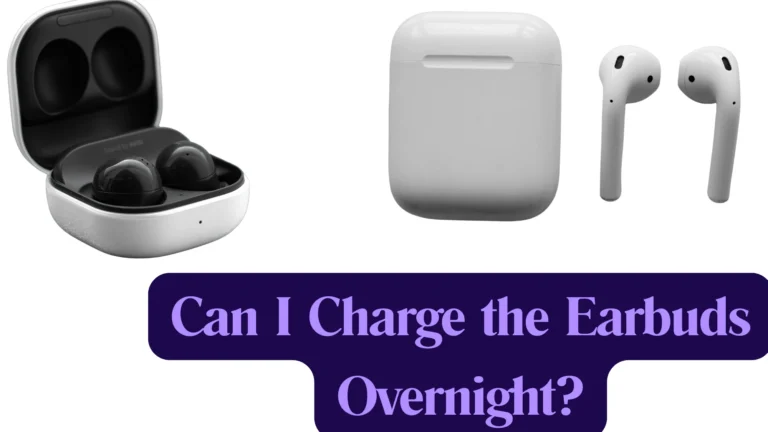
Can We Connect Two AirPods To One MacBook? Here’s Your Answer!
Wondering, Can we connect two AirPods to one MacBook?
Yes, you absolutely can connect two pairs of AirPods to the same MacBook and listen together at the same time. It is very useful when two people want to watch a movie, listen to music, or attend a meeting on one device without sharing earbuds.
It is super easy to do and requires seconds. You just have to follow a series of steps, which I am describing in this article. Let’s begin.
Can we connect two AirPods to one MacBook
No matter what the situation, you can easily connect two AirPods with one MacBook. Here’s how:
- I recommend that you must update both your Mac and your AirPods first, as well as turn on Bluetooth on your Mac.
- Then, open “Finder” on your MacBook and browse to Applications once Bluetooth is enabled. Select “Utilities” and then “Audio MIDI Setup” from the drop-down menu.
- To proceed, click the “+” icon in the Audio Devices. Then, select the “Create Multi-Output Device” option.
- Before connecting your AirPods to MacBook, make sure they are in range. Check the boxes next to the two pairs of AirPods that are now within range but don’t forget to untick the boxes next to the default MacBook Speakers.
- Make sure the Drift Correction option is ticked. You can easily find this option next to the second pair of AirPods.
- Go to the top menu and pick “Apple,” then “System Preferences,” then “Sound,” and after that, go for the “Multi-Output Device” from the drop-down menu.
- After you have completed the setup, you should be able to hear your Mac’s audio through both pairs of AirPods that are connected over Bluetooth.
It’s that simple. All you have to do is select the Multi-Output Device and you are done. Now you can easily listen to your favorite music or watch Netflix web series with a friend or family member by pairing two sets of AirPods on the same MacBook. The best part is that Apple AirPods provide surround sound, allowing for an incredible shared listening experience.
Connecting two AirPods to a single Mac isn’t a new function. It is similar to Apple’s Share Audio feature, which allows you to listen to music on all of your AirPods from the same Mac, iPhone, or iPad.
But unfortunately, unlike the previous method, you will not be able to handle each AirPods separately because the system distributes the same audio to two different devices. Also, keep in mind that if you’re wearing AirPods Max headphones, you may need to tap the Connect button frequently because they disconnect when you pull them out of your ear.
Now, let me tell you about how you will handle the volume.
How To Control Volume When Sharing Audio?
When using two pairs of AirPods or wireless headphones to share audio, you can control each pair of AirPods separately. This means you may use the Lock Screen or Control Center controls to adjust the level, as well as play, pause, and stop audio on an individual basis.
Luckily, you can control the sound of your AirPods on your MacBook simply by following the steps below.
- In the system tray of your MacBook, right-click on the “Sound icon.”
- From the menu bar, choose the option of “Sounds”.
- Now click on the “Playback” tab via the drop-down menu.
- Then go to “Properties” and choose your Bluetooth device.
- Adjust the volume of AirPods by clicking the “Levels” tab. Drag the volume slider to adjust the volume of one pair of AirPods, or the volume slider at the bottom to adjust the level of both sets of AirPods.
The controls on your headphones can also be used to control the audio for you and your friend.
What If My AirPods Won’t Connect To The Mac?
Many people have trouble connecting their AirPods to a Mac system, or the headphones aren’t producing any sound after they’ve been connected. If you’ve been facing problems with the connection of the AirPods, try the following solutions:
Check Bluetooth
Turning Bluetooth off and on is one of the simplest ways to solve Bluetooth-related issues. To see if the problem has been repaired, switch off Bluetooth on your Mac and then put it back on after a few seconds.
Remove And Reconnect Your AirPods
If the problem continues, try removing and then reconnecting your AirPods after some time. To do so, from the drop-down menu, choose Apple Menu > System Preferences > Bluetooth.
Charge AirPods
Before connecting, make sure your AirPods are completely charged. To pair with your Bluetooth devices, your AirPods require a certain quantity of battery energy. If this is the case, put your AirPods in their case and charge them before continuing. Hopefully, these steps will resolve any issue you are facing.
How To Disconnect Two AirPods From a MacBook?
Do you want to resume independent listening now? Remember that disconnecting AirPods from MacBook involves unpairing the wireless headphones from all other devices connected to the same iCloud account. When you’re done sharing your MacBook’s audio with other AirPods, you can simply disconnect them by following the steps below.
- On your MacBook first by clicking on the Apple icon in the menu bar. Next, click on “System Preferences.”
- Click the Bluetooth icon present in the preference pane.
- In the Devices list, right-click (or Ctrl-click) your AirPods.
- In the contextual option, select Remove.
- To verify, click Remove once more. And That’s it.
Wrapping Up
So, can we connect two AirPods to one MacBook? Yes, you certainly can. By just following the easy steps mentioned above to select the Multi-Output Device, you can connect two AirPods to your MacBook.
Indeed nothing beats listening to music and enjoying movies with friends or a loved one. Instead of using a speaker to share your audio with someone, I have just shown you how to share your audio with two pairs of AirPods. So, enjoy your time with AirPods on and no worry from the outside world.